Connect the tutorial database
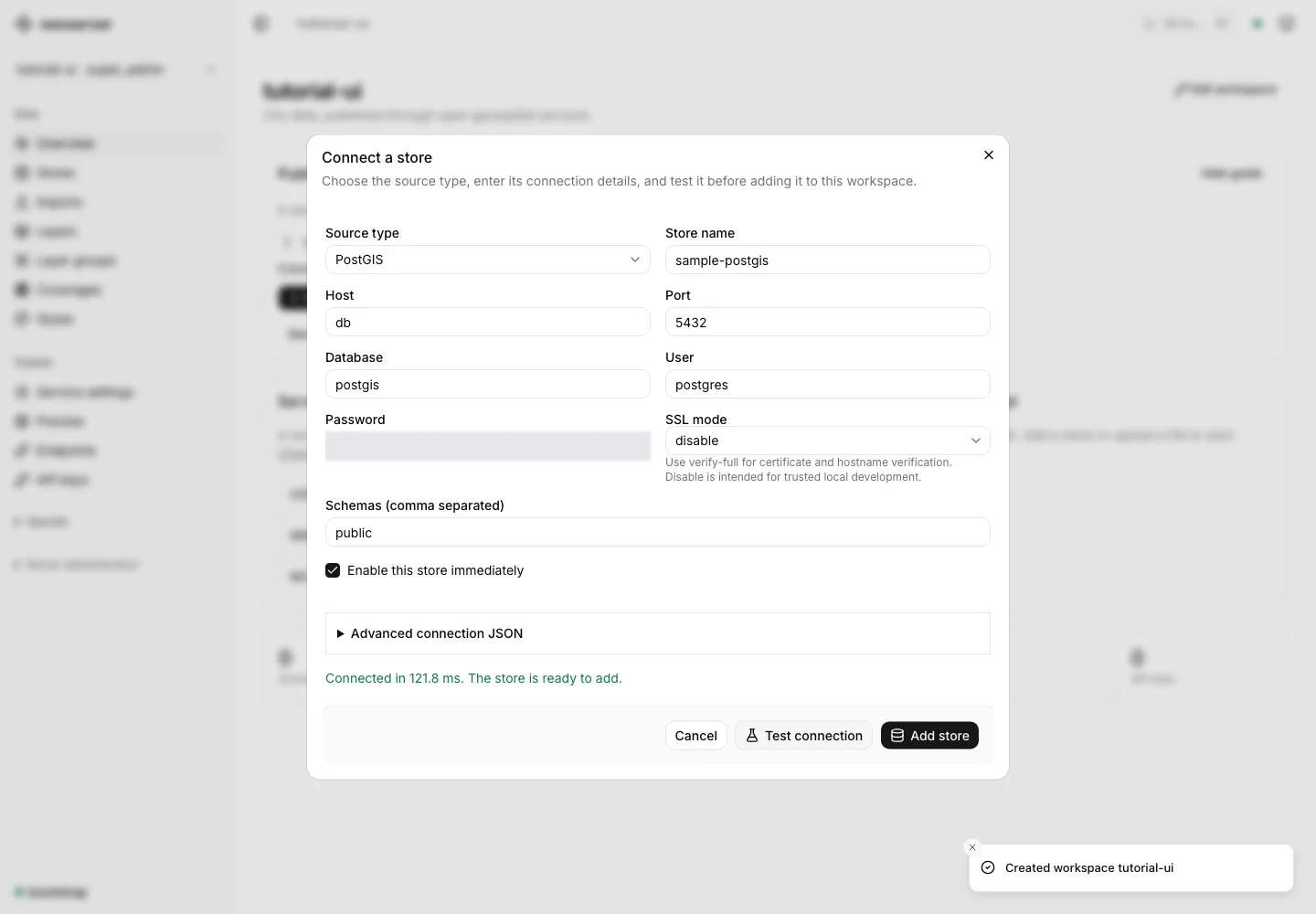
Use the PostGIS database started by the console tutorial. Open your workspace and choose Add store in the publishing guide. Leave Source type set to PostGIS.
| Field | Tutorial value |
|---|---|
| Store name | sample-postgis |
| Host | db |
| Port | 5432 |
| Database | postgis |
| User | postgres |
| Password | postgres |
| SSL mode | disable |
| Schemas | public |
These credentials are only for the local fixture. db is the database hostname on the Docker network. From inside the server container, localhost points at that container, not the PostGIS service.
Test before saving
Choose Test connection and wait for Connected in … ms. Correct hostname, credentials, network reachability, or TLS settings if the test fails. Then choose Add store.
Publish selected data
Connecting a store does not expose every table. Continue with discover and publish layers and choose the datasets to make available through the catalog.
Other source types
The data-source reference covers DuckDB Spatial, local and remote GeoParquet, vector files, raster files, mosaics, and SQL views. Match the source type to its capabilities: WFS writes require PostGIS, and raster sources publish coverages rather than vector features.
Local paths refer to the server’s filesystem and must be allowed by its path policy. Remote HTTP and S3 access also follows the configured source policy. To upload browser-local data into managed storage, use file imports.