This guide continues the console tutorial workspace. It publishes the places layer as a dataset Collection, imports a set of sample scene Items, and searches them on a map. For configuration limits, search parameters, and access rules, see the STAC reference.
Enable the catalog
STAC is disabled by default on the server. Set [STAC] Enabled = true and a separate DatabasePath in the configuration, then restart. Until then, the STAC page only reports that STAC is disabled on the server.
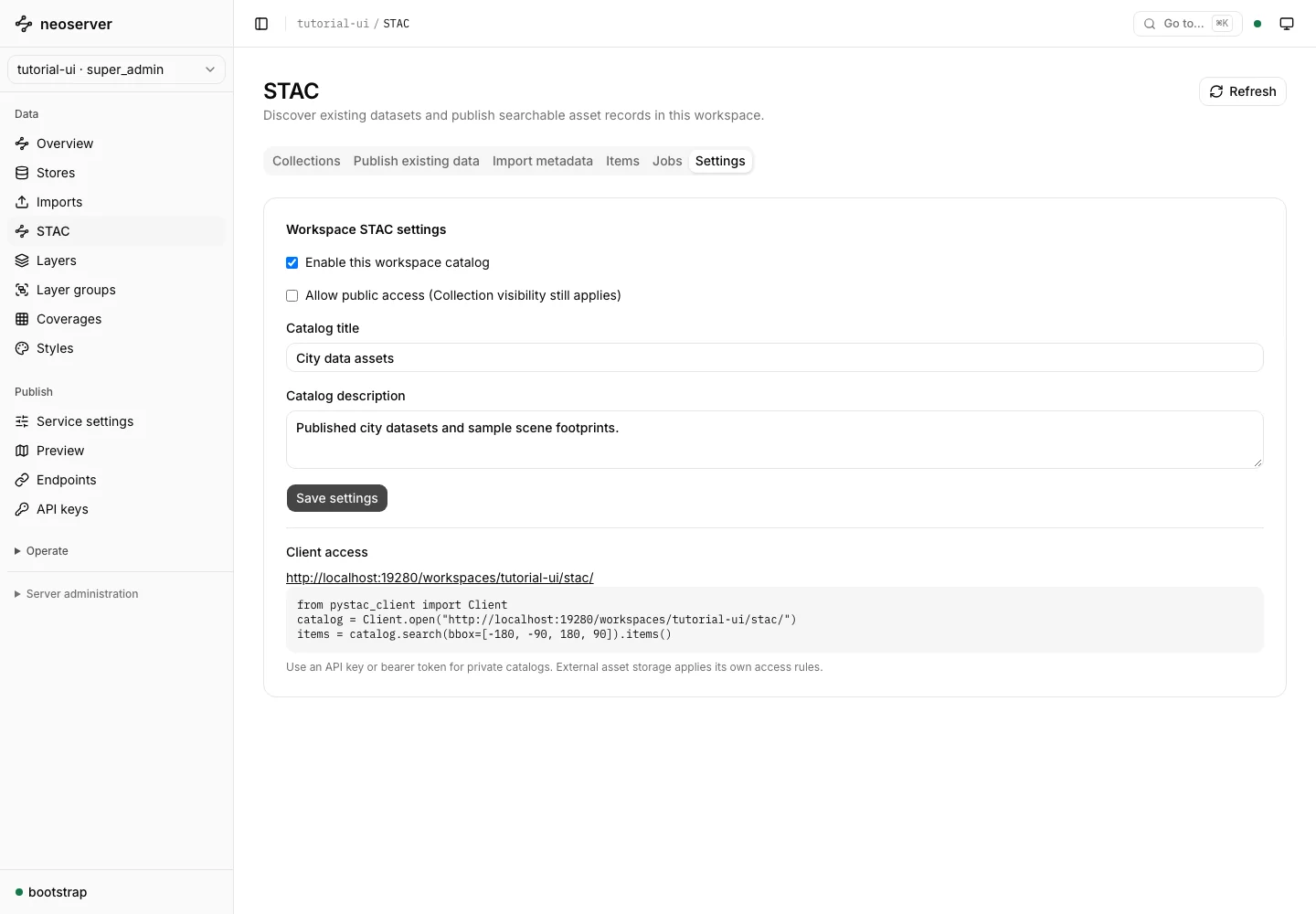
- Open STAC → Settings in the workspace.
- Select Enable this workspace catalog.
- Enter a Catalog title and Catalog description, then choose Save settings.
Leave Allow public access off unless anonymous clients should list the catalog. Each Collection also has its own visibility, and Collections linked to a layer follow that layer’s access rules.
Create Collections
Open Collections and choose New Collection. Enter a Collection ID, Title, Description, and License, then choose Save Collection. Create two Collections for this guide:
| Collection ID | Title | Used for |
|---|---|---|
city-places |
City places | Describing the published places layer |
sample-scenes |
Sample scenes | Holding imported Items that reference GeoTIFFs |
New Collections are restricted. Select Public Collection only when the workspace catalog is also public and anonymous clients should see it.
Publish an existing layer
- Open Publish existing data.
- Select City places as the Collection and the
placeslayer as the Published layer or coverage. - Keep Dataset discovery (Collection only) as the Publication mode.
- Choose Preview publication and review the generated Collection.
- Choose Publish. Progress appears under Jobs.
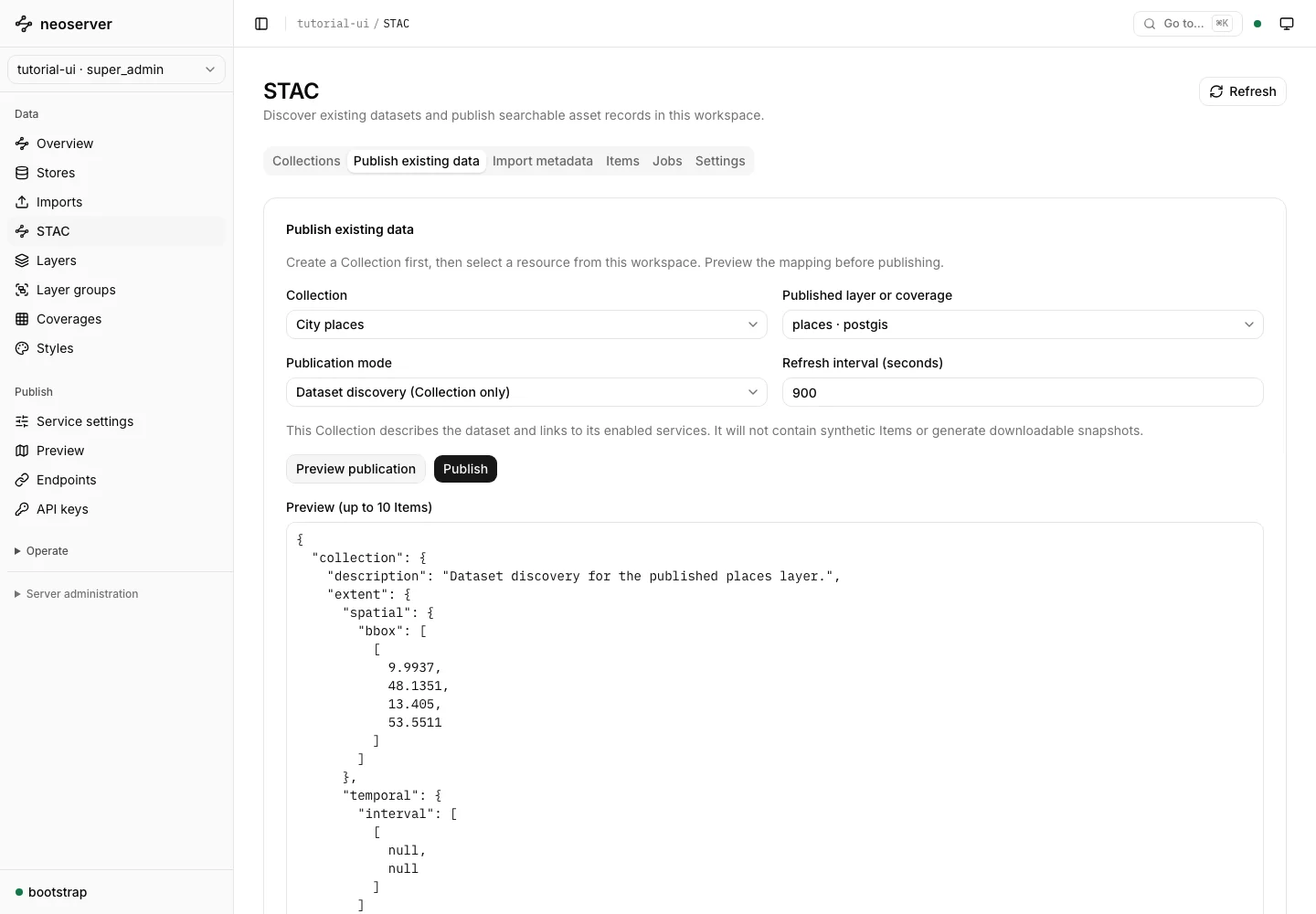
Dataset discovery adds no Items. It describes the dataset and links clients to its OGC services. To publish one Item per row instead, choose Mapped asset records and map a stable ID, an acquisition time, and an asset URL property. The STAC reference explains each mode.
neoserver refreshes the Collection when the layer changes, and removes it when the layer is deleted.
Import Item metadata
- Open Import metadata and select Sample scenes.
- Choose a Collection, Item, FeatureCollection, or NDJSON file in Metadata file. The screenshots use the 300 synthetic scenes from the neoserver checkout’s
testing/fixtures/stac/items.ndjson, with theircollectionchanged tosample-scenes. - Choose Upload and validate. Each record is checked against the STAC core schemas.
- Review the record count and preview, then choose Publish import.
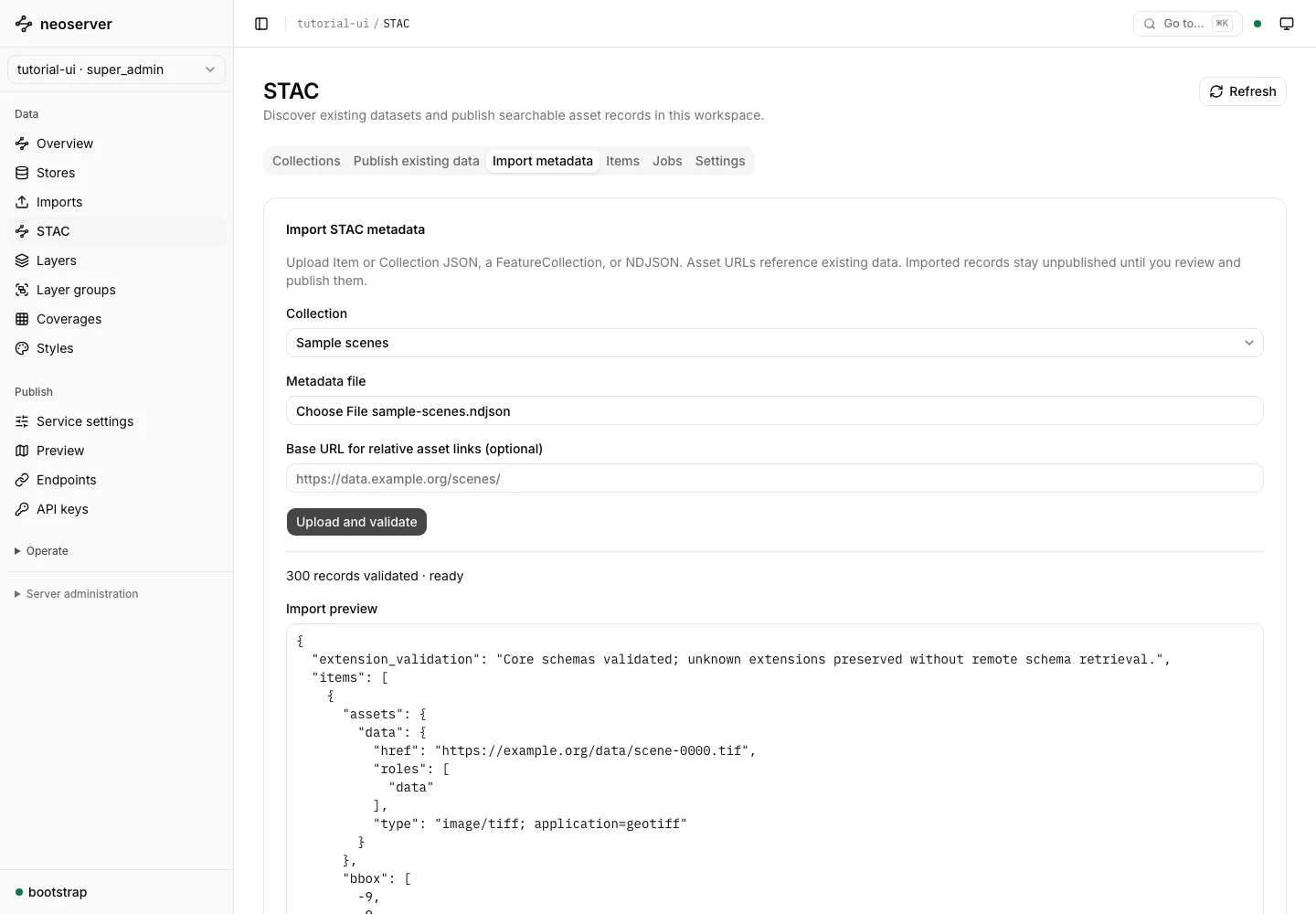
Records with an ID that already exists are rejected unless you select Replace existing Items with matching IDs (upsert). Unpublished imports expire after 24 hours.
Review Collections
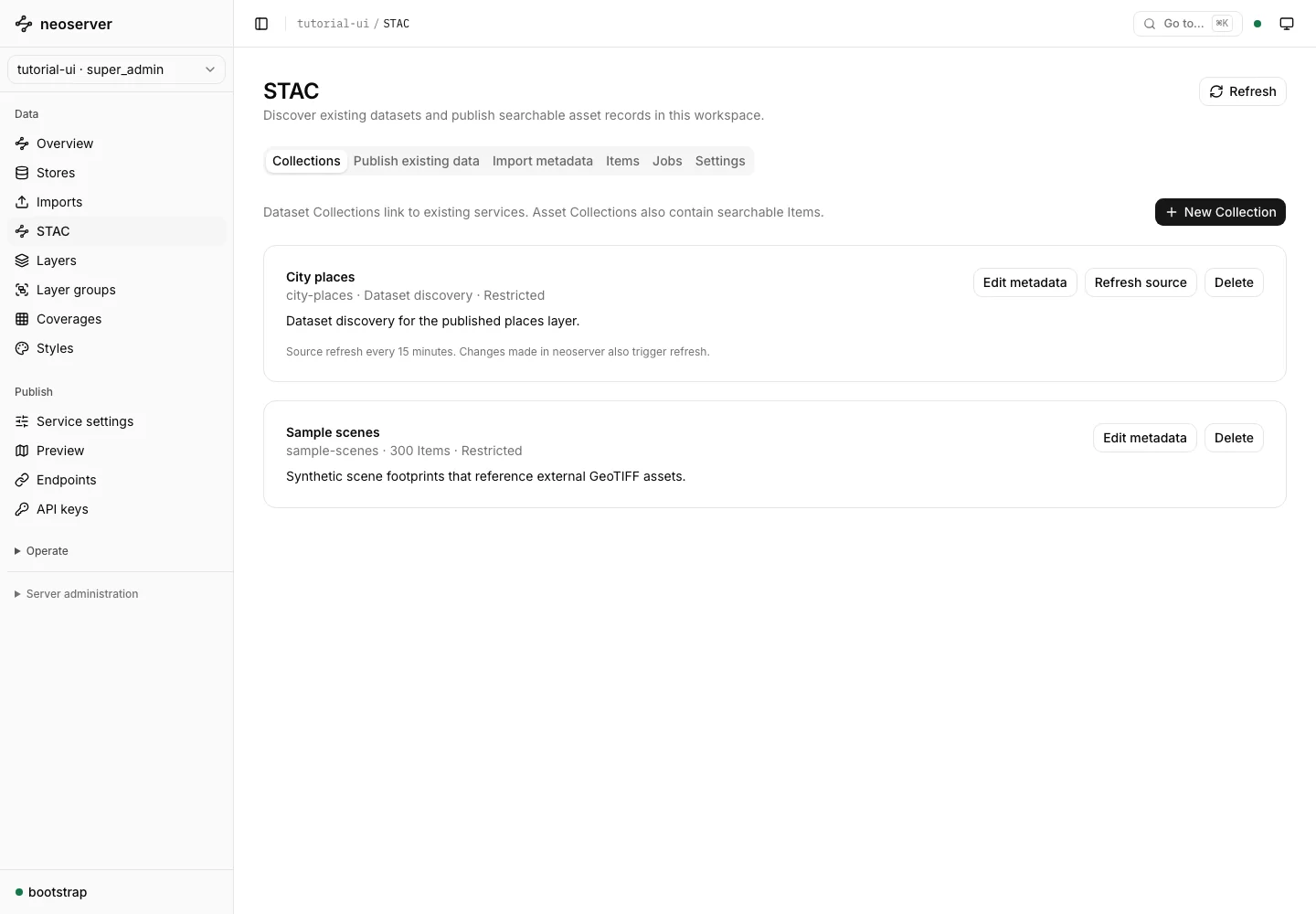
Collections now lists both Collections, with their mode or Item count and visibility. Use Edit metadata to change descriptive fields, Refresh source to rescan a linked layer, and Delete to remove STAC metadata. Deleting a Collection never deletes the source data.
Search Items
Open Items, select Sample scenes, and choose Search. Narrow the results with a Datetime or interval, a Bounding box, or Item IDs. Choose Show footprints to draw the current page on a map, and Use map bounds in search to copy the visible area into the bounding box.
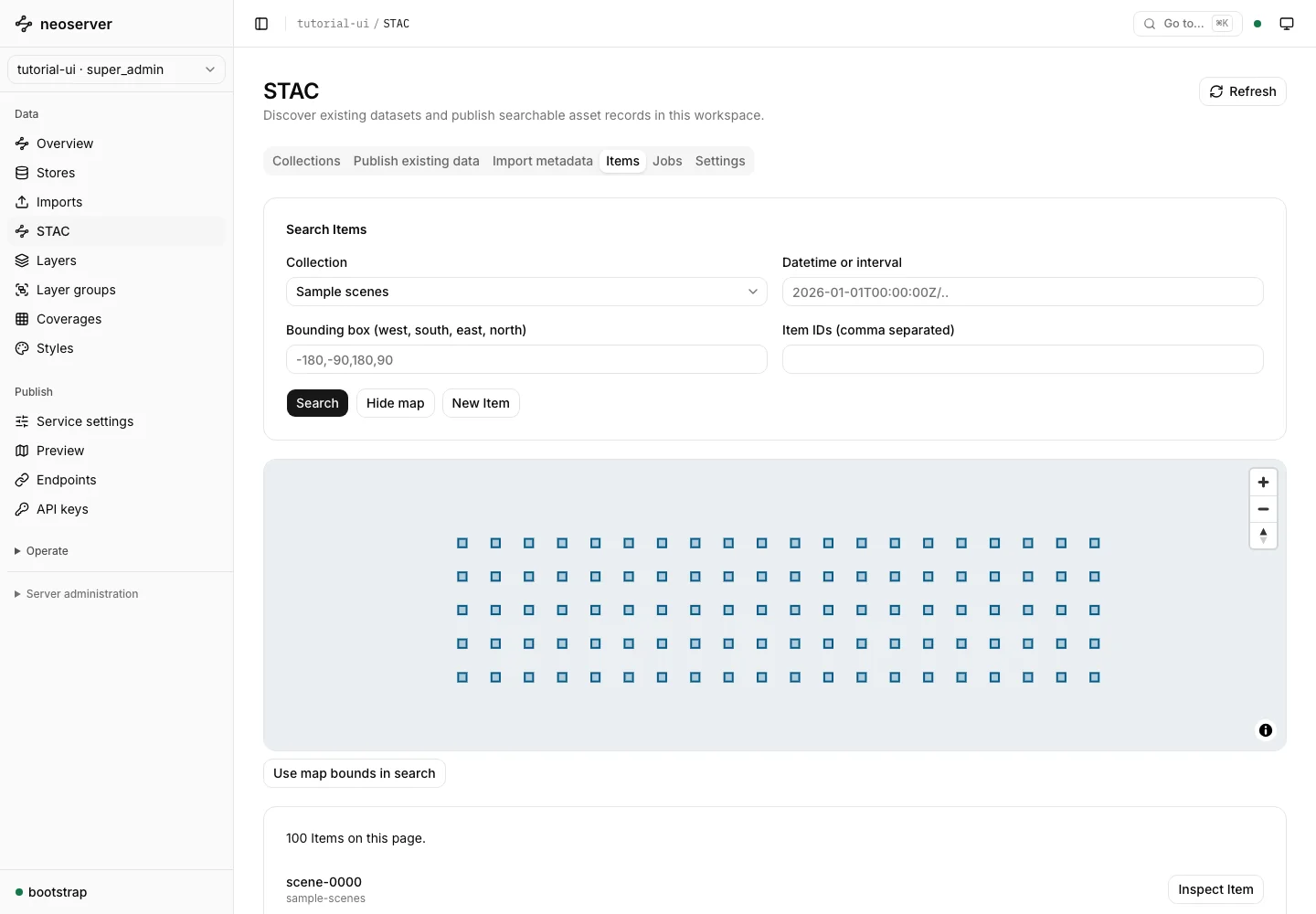
Inspect Item shows the full JSON. Items you imported can be edited or deleted here. Items generated from a layer belong to their source: change the publication mapping instead.
Connect a client
The catalog root is /workspaces/{workspace}/stac/. STAC clients such as PySTAC and STAC Browser authenticate with an API key or bearer token while the catalog is private. See search and clients for an example.